Seedr Chrome extension — install, set up and use

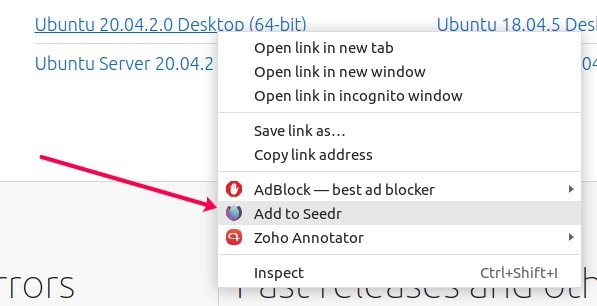
The Seedr Chrome extension turns any file link you find in a browser into a one-click add to your cloud. Right-click a link, pick Add to Seedr, and the file starts saving to your account. No copy-pasting URLs, no separate tab.
It works in Chrome, but also in every Chromium-based browser: Edge, Brave, Opera, Vivaldi, Arc. The steps are the same everywhere with minor menu differences.
What this gets you
- Right-click any file link → added to your Seedr in one step.
- A "Default Client" toggle so left-click on a file link opens Seedr by default.
- A small popup showing recent additions and their status.
- Works alongside your browser file transfer tool without conflicts.
- Same flow on Windows, macOS, Linux, and ChromeOS.
What you need
- A Seedr account. Free is fine; the extension does not require Premium.
- Chrome, Edge, Brave, Opera, Vivaldi, or Arc. Any version from the last two years.
- Permission to install extensions (work laptops sometimes block this).
Firefox is covered by a separate Seedr Firefox add-on; install paths differ slightly.
Setup, step by step
1. Install the extension
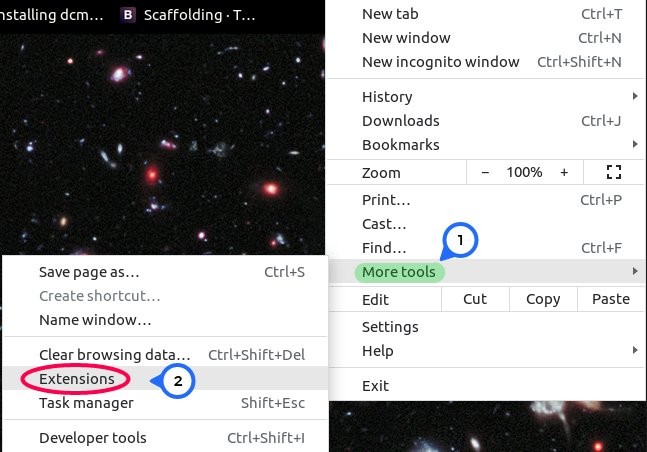
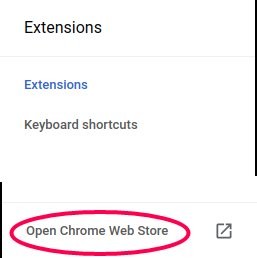
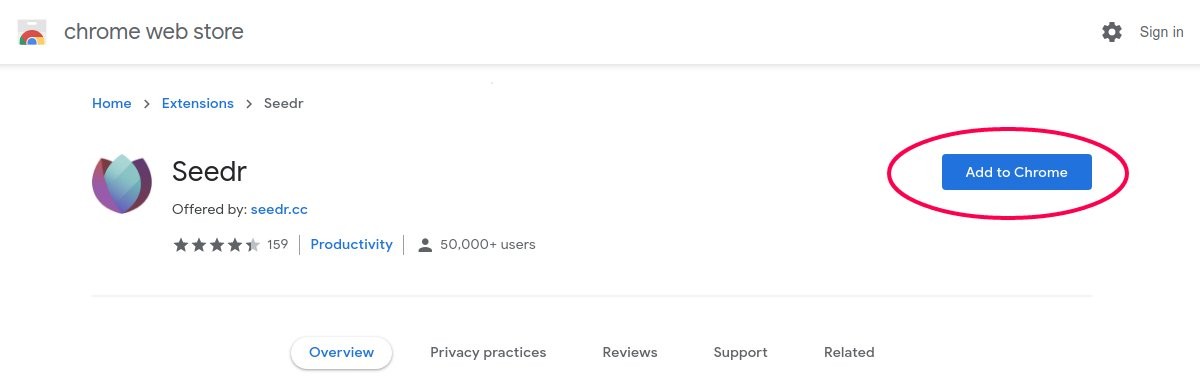
- Open your browser. In Chrome, click the three-dot menu (top right) → Extensions → Visit Chrome Web Store. In Edge, go directly to the Chrome Web Store URL — Edge supports Chrome extensions without a port.
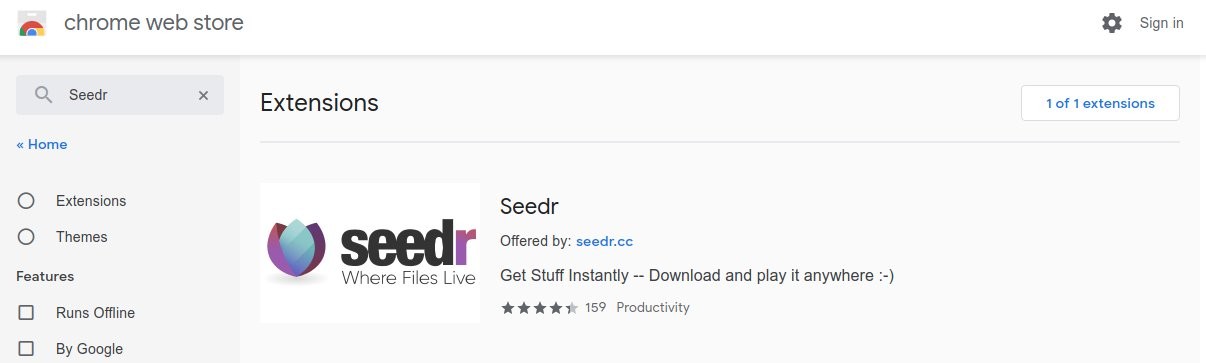
- Search Seedr.
- Click the result, then Add to Chrome (Edge calls this Allow extensions from other stores the first time, then Add).
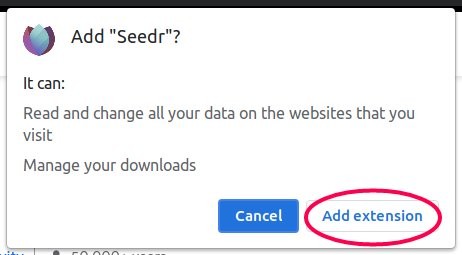
- Confirm on the permissions prompt.
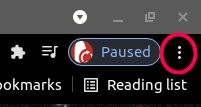
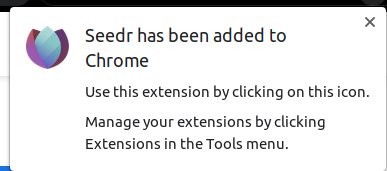
You will see the Seedr icon appear near the address bar. If it is hidden behind the puzzle-piece menu, the next step fixes that.
2. Pin the extension
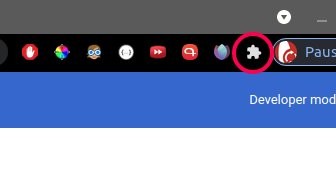
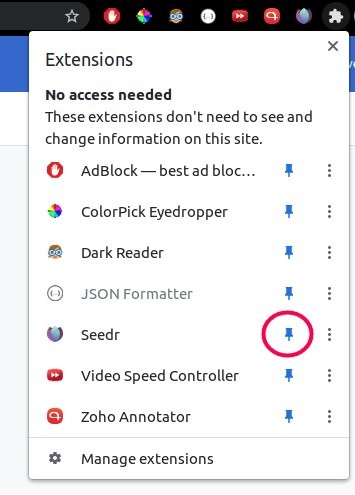
- Click the puzzle-piece icon next to your address bar.
- Find Seedr in the list. Click the thumbtack next to it so it lights up.
- The Seedr icon now lives permanently next to the address bar.
3. Sign in and set as default
- Click the Seedr icon. A popup appears.
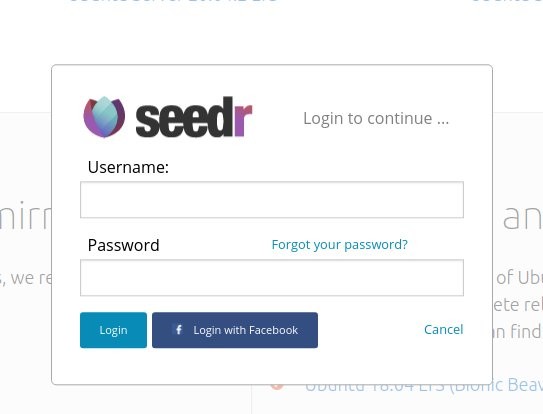
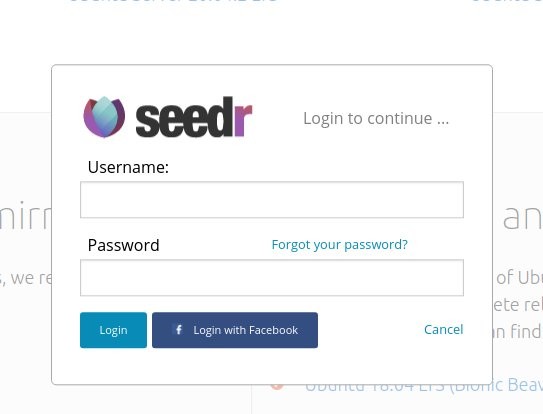
- Click Sign in. The standard Seedr login opens — use email, Google or Facebook.
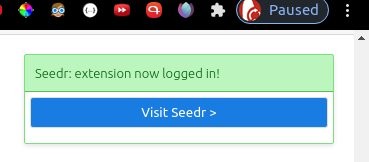
- Once signed in, the popup shows your account and an Options panel.
- Tick Default Client. This makes left-click on supported links open Seedr instead of a locally-installed app.
4. Add your first file
Two ways.
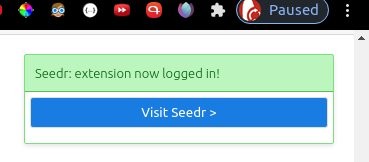
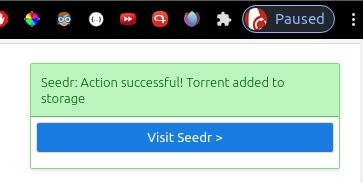
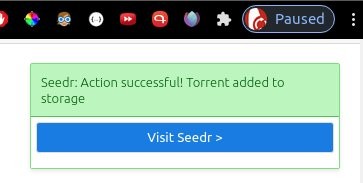
- Right-click: find a file link on any site. Right-click → Add to Seedr. A success toast appears top-right.
- Left-click: with Default Client on, a normal click on a supported link sends it to Seedr. Your browser may ask permission the first time.
Open your Seedr dashboard in another tab to watch it appear in the file list.
Troubleshooting
- "Add to Seedr" is not in the right-click menu. You missed the sign-in step. Click the extension icon, log in, try again. The right-click entry appears per-tab after first login.
- Clicking a file link opens a locally-installed app, not Seedr. Your OS still has the protocol handler pointed at that app. In Windows: Settings → Apps → Default apps → Choose by protocol → Seedr. On macOS: adjust the default in whichever app currently owns the protocol, or use right-click → Add to Seedr instead.
- Login popup closes immediately. A content-blocker extension is stripping the redirect. Disable uBlock/AdGuard for seedr.cc and retry.
- Extension shows "Not logged in" after every restart. Your browser is clearing cookies on exit. Check Settings → Privacy → Cookies and add seedr.cc to "Allowed to always use cookies".
- File added but nothing appears in Seedr. Either the source is unreachable, or Seedr is still fetching metadata. Wait a few minutes. If it still shows nothing, the source is dead.
- Works in Chrome, not in Arc. Arc sometimes disables unused extensions to save memory. Re-enable in arc://extensions.
What works well and what does not
Works well:
- File-link handling on essentially any site.
- Mixing the extension with the web app: add via extension, play in Seedr's viewer.
- Cross-profile use — sign in per profile, each gets its own account.
Known limits:
- Only adds links; it does not upload local files. For that, use the Seedr upload area in the browser.
- No direct download links from the extension; generate those from the web dashboard.
- Brave with aggressive Shields sometimes blocks the popup auth; whitelist seedr.cc.
Wrap
Install once, pin it, flip Default Client on, and every file link on the web is one click away from your cloud.
.jpg)
.jpg)
.jpg)
Was this article helpful?
Related Articles

How to open HEIC photos online on Windows, Android, or any browser
Open iPhone HEIC photos from any device in Seedr’s cloud viewer — no conversion, no codecs, no extra apps — and keep them organized alongside your other files.

Connect Seedr to Infuse (iOS, tvOS, macOS)
Learn how to easily connect your Seedr account to the Infuse app using WebDAV or FTP. View 4K media directly to your Apple TV or iOS device without saving.

Three ways to add links and files in Seedr V2
Learn how to use Seedr V2’s Link button to add media links, scan webpages, upload files from your device, and share to Seedr via PWA or browser extensions.